# Documentation
# Website
# Shipping Reports
# Generating a New Report
New shipments can be found in the Shipping Reports section of this website aggregated by shipping method. When generating a new shipping report for a specific shipping method, all the new shipments available until that moment for that method will be included in the PDF report. This action may take a while to complete and will open a new tab with the generated PDF once it finishes.
Note that, after creating a shipping report, the included shipments will not be available for other reports anymore. Therefore, please make sure reports are created only when all the necessary shipments have been handled.
# Shipments to the same address
Shipments that share address are automatically shown right below the form for generating new reports. Only shipments that are not included already in reports are shown.
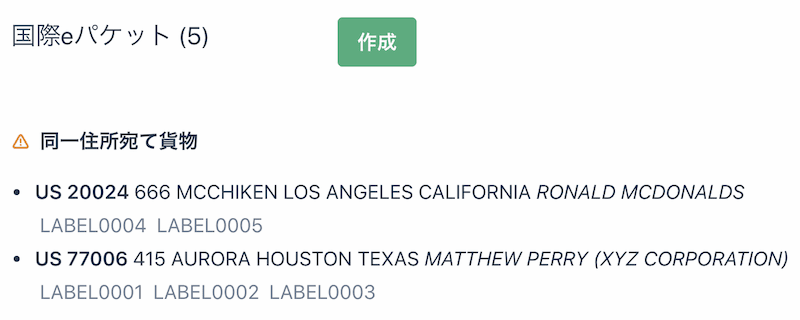
The order number of each shipment appears below each address line.
# Opening recent reports
For convenience, shipping reports are stored for a few days. A list of recent reports can be found in the Shipping Reports section of this website. They are represented by the shipping method, the number of shipments included, and the date the report was created.

When generating a new report, the result will automatically appear in this list. Therefore, even if the tab is closed while the report is being generated, it is still possible to find a reference to it later on.
A CSV file that contain order and tracking numbers can also be downloaded.
# Shipping Labels
Shipping labels from past shipments can be found by using the corresponding order number in the Shipping Labels section of this website. The order number must be exactly the one used when the label was first created.
Please note that shipping labels are stored only for a few months as specified in the contract.
# Delete shipping labels
Right below the input for finding labels, there is another input that deletes shipping labels registered in the system. Deleted labels won't be part of the next shipping report. Only labels that are not already part of a shipping report can be deleted.
Write the order number or the carrier's tracking number to delete labels (e.g. EN074839521JP for EMS). This action cannot be undone.
# QR Codes
QR Codes are used to give the Client App information about an order and its recipient. The content of a QR code must an encrypted version of the order, which is obtained by calling the following API endpoint.
# Encrypting shipping orders
- HTTP request:
POST - Endpoint:
https://roboami-api.whiterabbitjapan.com/encryptShippingOrder
# Request body
The body must be in JSON format including the following fields:
API_VERSION: Number (optional) - API version number, default is 1.CUSTOMS: String - Customs description for the package. Must be one of the following values:GIFTMERCHANDISE
INSURED: Integer - Insured value of the package in JPY, only valid for EMS. Value must be20.000 <= value < 2.000.000. E.g.65000. OptionalMETHOD: String - Name of the shipping method. Valid values (only registered methods):EMS: EMS.INTEPACK: International ePacket.INTEPACKLIGHT: International ePacket Light.SPAIR: Small Packet Airmail.SPSAL: Small Packet SAL.PMAIR: Printed Matter Airmail.PMSAL: Printed Matter SAL.PPAIR: Parcel Post Airmail.PPSEA: Parcel Post Seamail.PPSAL: Parcel Post SAL.
RECIPIENT: Object - Information about customer. Contains the following fields:PHONE: String - Customer's phone number. E.g.+1555720212. Optional | Max 20ADDRESS: Object - Information about customer's address. Contains the following fields:NAME: String - Customer's full name. E.g.MATTHEW PERRY. Optional | Max 80COMPANY: String - Name of customer's company. E.g.XYZ CORPORATION. Optional | Max 94 including NAMEADDRESS1: String - Main part of the street address. E.g.415 AURORA. Max 80ADDRESS2: String - Extra field for street address. E.g.N13 DOOR 5. Optional | Max 80PC: String - Postal code. E.g.77006. Max 20ISO2: String - Country code in ISO2 format. E.g.US.CITY: String - Name of the city. E.g.HOUSTON. Max 36REGION: String - Name of the region. E.g.TEXAS. Max 24CF: String - Codice Fiscale (Tax Number) for Italy or Brazil. E.g.232323. Optional | Max 25
ITEMS:API version 1: Array<String> - A list of items where each item has the following format:
<quantity>/<single item price JPY>/<customs description>.API version 2: Array<String> - A list of items where each item has the following format:
<quantity>/<single item price JPY>/<country of origin>/<customs description>.`.API version 3: Array<String> - A list of items where each item has the following format:
<quantity>/<single item price JPY>/<country of origin>/<hs code>/<customs description>.This supports a maximum of 20 unique customs descriptions so please aggregate the items. For example,
["1/100/JP/TOY", "1/300/JP/PLUSH TOY", "1/200/JP/TOY"]can become["3/200/JP/TOY"]by merging items and calculating the average value.For an
API_VERSIONsupporting country of origin in theITEMSarray, the supplied country of origin must be in IS02 format.
--
# Allowed characters
Due to Japan Post API constraints and QR code limitations, please use only numbers, uppercase letters, spaces and the following characters: +, -, ., /, :, @, '. Apart from that, please keep each field under 80 characters in total.
# Request sample
Content type: application/json
{
  "CUSTOMS": "GIFT",
  "INSURED": 40000,
  "METHOD": "EMS",
  "RECIPIENT": {
    "PHONE": "+15557071212",
    "ADDRESS": {
      "NAME": "MATTHEW PERRY",
      "COMPANY": "XYZ CORPORATION",
      "ADDRESS1": "415 AURORA",
      "ADDRESS2": "DOOR 16",
      "PC": "77006",
      "ISO2": "IT",
      "REGION": "MI",
      "CITY": "MILANO",
      "CF": "232323"
    }
  },
  "ITEMS": [
    "1/1050/GAMESOFT",
    "2/1500/FIGURE",
    "3/333/TOY",
    "1/444/GUITAR",
    "5/5555/BOOK",
    "1/1050/TOWEL",
    "2/1500/CD",
    "3/333/STATIONERY",
    "1/444/HAT",
    "5/5555/ACCESSORIES",
    "1/1050/CALENDAR",
    "2/1500/USB STICK",
    "3/333/CLOTHES",
    "1/444/WATCH",
    "5/5555/STRAP",
    "1/1050/MOUSEPAD",
    "2/1500/BLURAY",
    "3/333/TICKET",
    "1/444/FOOD",
    "5/5555/SHAMPOO"
  ]
}
# Response sample
Content type: text/plain
P57**5C7*/**3**52*30S5$7H$MSM/1*RR**SE*/1/A0NI1$S5P/*:BDL30DWFP**70$/I$K3R4YL1A**E4:M/P43*4MD*1:$5*DSTS7O:74I4MM2/Z*5:SRS*0/*/5:OT*2IIOI$*1*R/C3$2$**S5:%**A1T*D*TC**57AA*N%*0IDD1SS*T**4*Y$701W**ACE*MYRRT*735OO07RD7:NG**Y1*/FPDA%EA*2217*A$7$O5P1MTI*SO73RU1ECO1ETR4$CY*AE7$$MEE5O*NUG3RU5C*CA1/C7*+RI2*2***IN07700*:/T7*$$U/A*T*DFN*$5S:0L23T:/$E35UU4$G77/2*$::/*C*Y1$5$/RI$/7$AY/$ES0EAE$/$O*322*ED*$5I7*7E34%FT$0IOSC5*7717R*U/5S4BCI513T*N0DGRO7O1**0T*5*R*E/A2*T4S0$M4*O*NC$HH3*BF$5/NAX40E/K/PA0I*I/OT**G*P$H1*/%5*6RS:33$151ERAEEOEE3/4CT7/:/WM7O13LML5CT1*OT7/OTHA7**UAE/EH23TT$/705IO55T$O*O*/PI6:750OSA/SR0$75A0SSROH$D1N/OK*7SO**5$//
# Handling errors
Errors are returned in JSON format following this structure:
error: Unique property of the returned object containing all the error details.status: Integer - HTTP status code. Most common errors are 400 (bad request).code: String - Reason why the error was thrown:param_missing: Required parameter was not provided.param_invalid: Parameter name is correct, but its value is not valid or not expected.param_unknown: Uneeded parameter was provided.not_found: Resource (e.g. shipping label or shipping report) was not found in DB or storage.
message: String - Error message in English.description: String - Error description in Japanese.
Only errors with a code greater or equal than 500 should be retried without modifying the input.
# Sample error
{
  "error": {
    "status": 400,
    "code": "param_missing",
    "message": "Bad Request - Expected a value of type `allowedString` for `RECIPIENT.ADDRESS.CITY` but received `undefined`.",
    "description": "パラメータ「RECIPIENT.ADDRESS.CITY」が指定されていません。有効な文字列が必要です。数字、大文字、スペース、および記号「 +-'/.:@ 」のみ使用可能。"
  }
}
# Creating a valid QR code
# QR code specifications
Specification:
QR Code 2005Mode:
AlphanumericError Correction:
L (7%)
# Content of QR code
The QR code must contain an encrypted order prepended by the order ID, using : as separator: <orderID>:<encrypted order information>. Example:
ABC1234567:P57**5C7*/**3**52*30S5$7H$MSM/1*RR**SE*/1/A0NI1$S5P/*:BDL30DWFP**70$/I$K3R4YL1A**E4:M/P43*4MD*1:$5*DSTS7O:74I4MM2/Z*5:SRS*0/*/5:OT*2IIOI$*1*R/C3$2$**S5:%**A1T*D*TC**57AA*N%*0IDD1SS*T**4*Y$701W**ACE*MYRRT*735OO07RD7:NG**Y1*/FPDA%EA*2217*A$7$O5P1MTI*SO73RU1ECO1ETR4$CY*AE7$$MEE5O*NUG3RU5C*CA1/C7*+RI2*2***IN07700*:/T7*$$U/A*T*DFN*$5S:0L23T:/$E35UU4$G77/2*$::/*C*Y1$5$/RI$/7$AY/$ES0EAE$/$O*322*ED*$5I7*7E34%FT$0IOSC5*7717R*U/5S4BCI513T*N0DGRO7O1**0T*5*R*E/A2*T4S0$M4*O*NC$HH3*BF$5/NAX40E/K/PA0I*I/OT**G*P$H1*/%5*6RS:33$151ERAEEOEE3/4CT7/:/WM7O13LML5CT1*OT7/OTHA7**UAE/EH23TT$/705IO55T$O*O*/PI6:750OSA/SR0$75A0SSROH$D1N/OK*7SO**5$//
Where ABC1234567 is the order ID.
# QR code sample

# Client App
The Client App is a Windows Application that is installed in every machine at the warehouse. It is used for printing Japan Post shipping labels by using previously generated QR codes that contain information about the order and recipient. For more information about how to create valid QR codes, see QR Codes section.
Apart from this, it is recommended printing a simple barcode that includes the order ID and attaching it to the package or document.
# Settings
The following options are configurable in the settings section of the Client App.
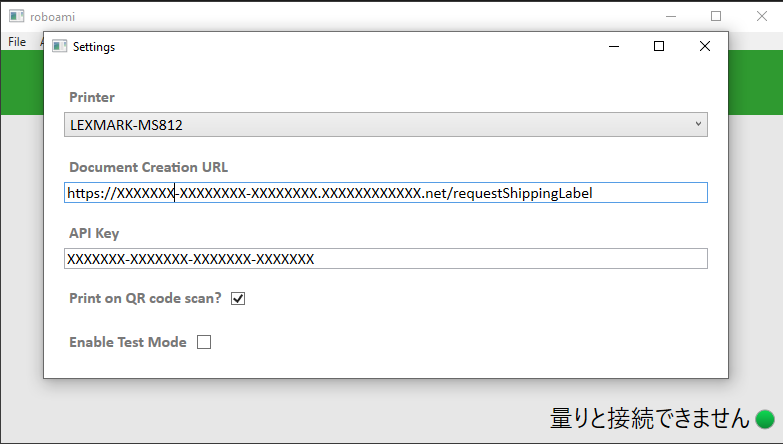
Note that settings are saved when closing the window.
# Printer
This dropdown will include all the recognized printers in the network. Please select the one that should print all the shipping labels. Having a fast printer is crucial to reduce delays.
# Document Creation URL
This is the endpoint that will be used to download the shipping labels. Unless the provider specifies something different, the value should always be: https://roboami-api.whiterabbitjapan.com/requestShippingLabel.
# API Key
In order to protect the API, the customer will be provided with an API Key that must be included in this input. Please ask your provider for the API key if this field is empty.
# Print On QR Code Scan
For testing purposes, printing can be disabled by unchecking this checkbox. Shipping labels will still be requested but they will not be sent to the printer.
# Enable Test Mode
For testing purposes, a secondary server will be used when this checkbox is on. Shipping labels will be generated (with a watermark) but will not be included in the daily shipping report. The app will show a notification to remind that test mode is enabled.
# Scale
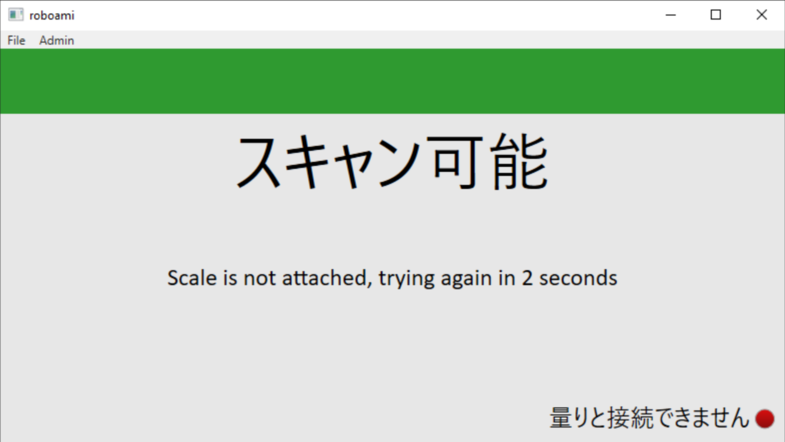
The Client App will try to read weight values from a scale device connected to the Windows machine. Make sure the scale device is connected and wait until the app shows a green light at the bottom-right of the screen. It will try to connect every few seconds.
# Scanning QR codes
When the settings and scale are configured, the Client App will be ready to scan QR codes.
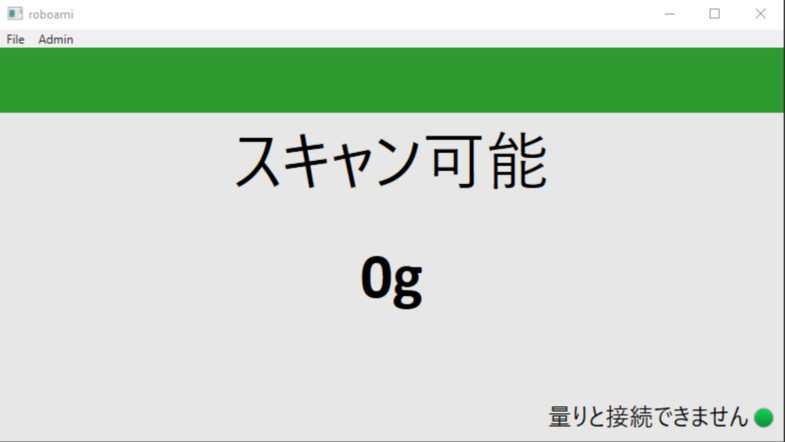
The weight values will be automatically read from the scale. Scanning a QR code will automatically request a shipping label with the current weight value. Therefore, make sure the weight has stabilized before scanning the QR code.
# Errors
If the is an error at any point of the process, the Client App will show it as follows:
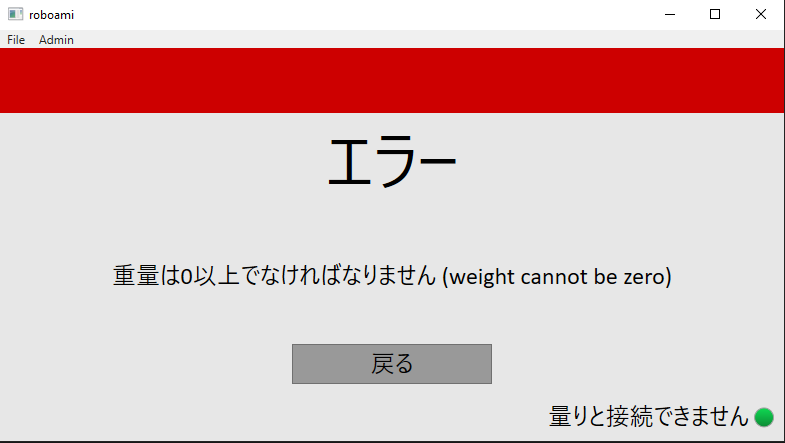
Please take care of the error and continue. If the issue cannot be solved, please contact your provider for more information.
# Processing and Verifying Codes
When a valid QR Code and weight are provided, the Client App will go in processing mode while the shipping label is generated and printed.
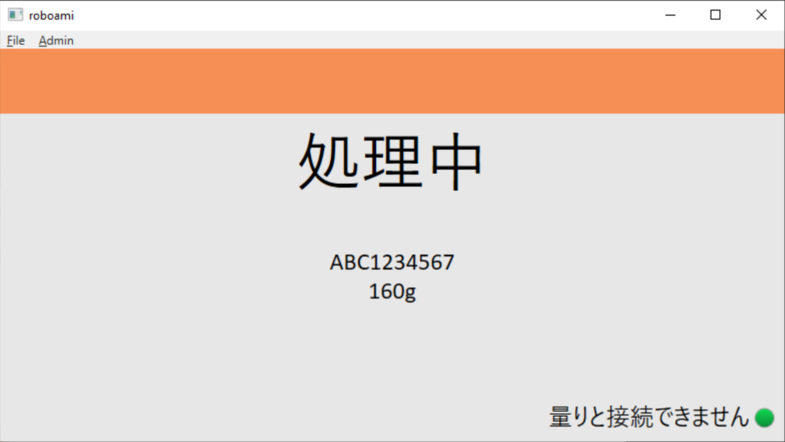
It will show the current order ID and current weight value on screen. Please notice that this weight value does not include the weight of the shipping label itself. Therefore, the weight value shown later in the shipping label document will be a few grams higher (about 4 to 16 grams higher).
When the shipping label has been generated, the Client App will show a confirmation step. This step can also be skipped manually if there is any issue.
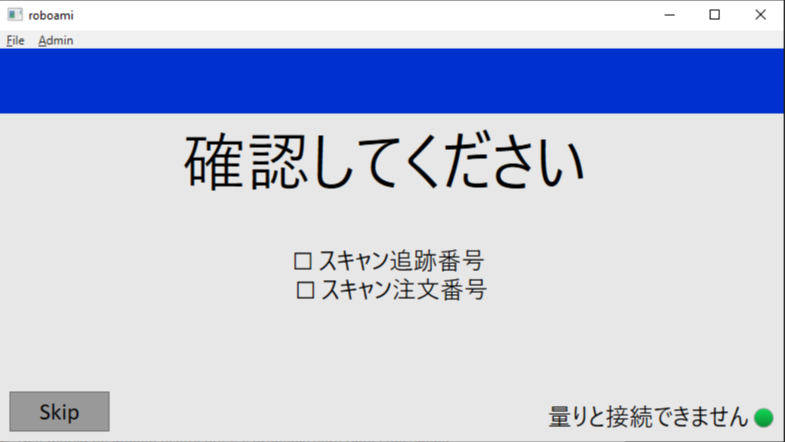
Here, it will verify that the new shipping label has been attached to the correct package. Please scan both the order ID code and the tracking number that appears at the beginning of the printed shipping label. Note that the order ID should be read from a simple barcode that is attached to the package or related document, not from the previous QR code.
When this step is either completed or skipped, the Client App will show the main screen again in order to continue with the next package.